Set Up Your Gaming Keyboard LCD: Pages, GIFs, Stats
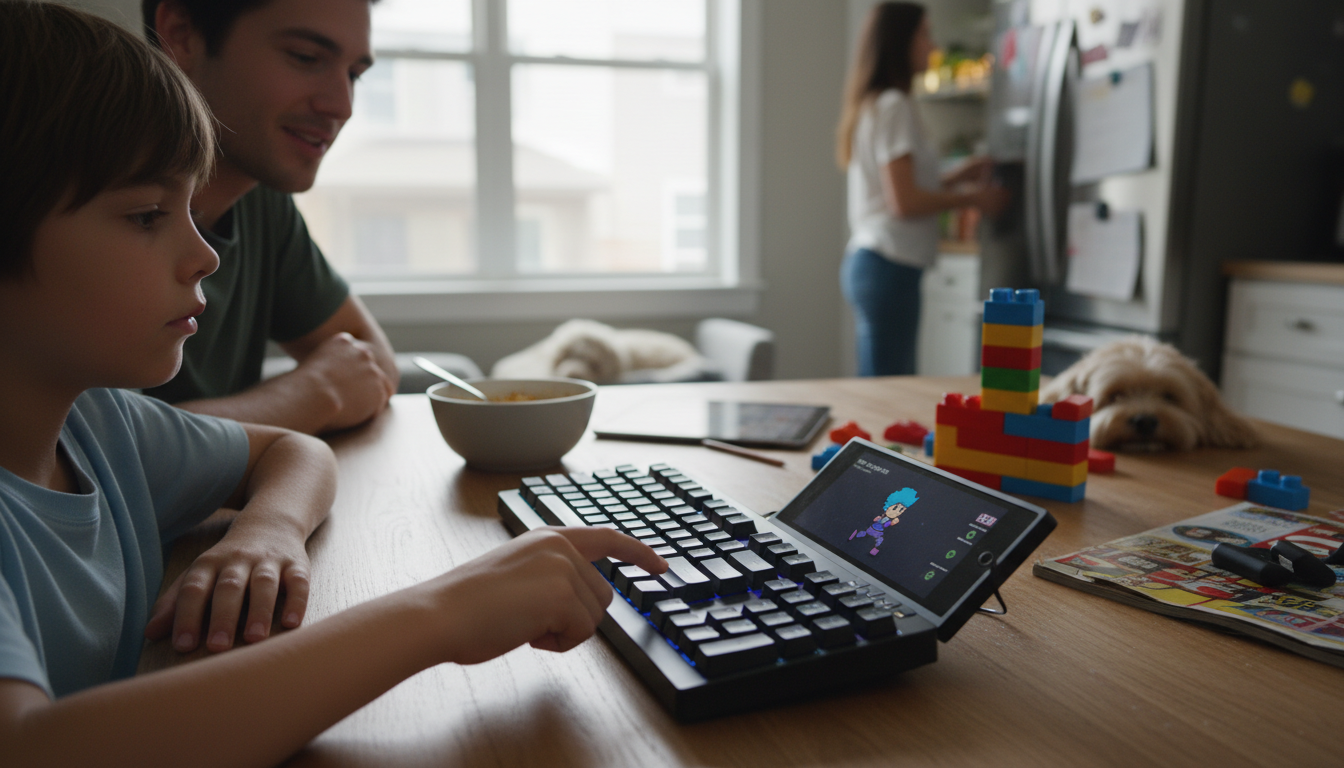
How do you set up a wireless mechanical gaming keyboard’s LCD screen and customize what it displays?
Start by fully charging the keyboard (or installing fresh batteries) and connecting it in the mode you plan to use most: 2.4GHz dongle for the lowest latency, Bluetooth for multi-device switching, or USB-C for a guaranteed stable link. Once the keyboard is connected and recognized by your computer, install the manufacturer’s configuration software (or the open-source alternative recommended for your model). The LCD features usually won’t unlock until the app detects the keyboard and the correct firmware is installed.
Step 1: Update firmware and enable the LCD module
Open the keyboard software and check for a firmware update first. LCD-equipped boards often have separate firmware components for the main controller and the display. Apply updates with the keyboard plugged in via USB to prevent interruptions. After rebooting the keyboard, confirm the LCD is enabled in the device settings (some models let you turn it off to save battery).
Step 2: Choose what the LCD displays
Most keyboard LCD screens support “pages” or “profiles.” Pick a default page for everyday use (time/date, battery level, connection mode, CPU/GPU stats) and assign alternate pages to specific profiles (gaming, work, streaming). If the software offers widgets, add or remove modules and set refresh intervals—faster updates look smoother but can reduce battery life on wireless.
Step 3: Upload images, GIFs, or animations
For custom graphics, use the software’s LCD editor to import a PNG/JPG/GIF, then resize and crop to the screen’s native resolution. If your keyboard supports color depth limits or grayscale only, convert the asset accordingly to avoid muddy results. Upload the file to the keyboard’s onboard memory, then assign it to a profile or key layer. Test brightness and invert options for better contrast in bright rooms.
Step 4: Set shortcuts and behavior
Map a key or knob to cycle LCD pages, toggle a stats overlay, or swap profiles. If the display turns off too quickly, adjust the sleep timer; for competitive play, consider disabling complex animations to preserve battery and keep wireless performance consistent.
For model-specific steps, supported formats, and troubleshooting tips, see the full guide: https://legendene.com/blog/how-do-you-set-up-a-wireless-mechanical-gaming-keyboard-s-lcd-screen-and-customize-what-it-displays/.
FAQ
Why is my keyboard’s LCD screen not turning on?
Confirm the display is enabled in the keyboard software, then update firmware while connected via USB. If it still stays off, check battery level, brightness settings, and whether a power-saving mode is forcing the LCD to sleep.










Leave a comment